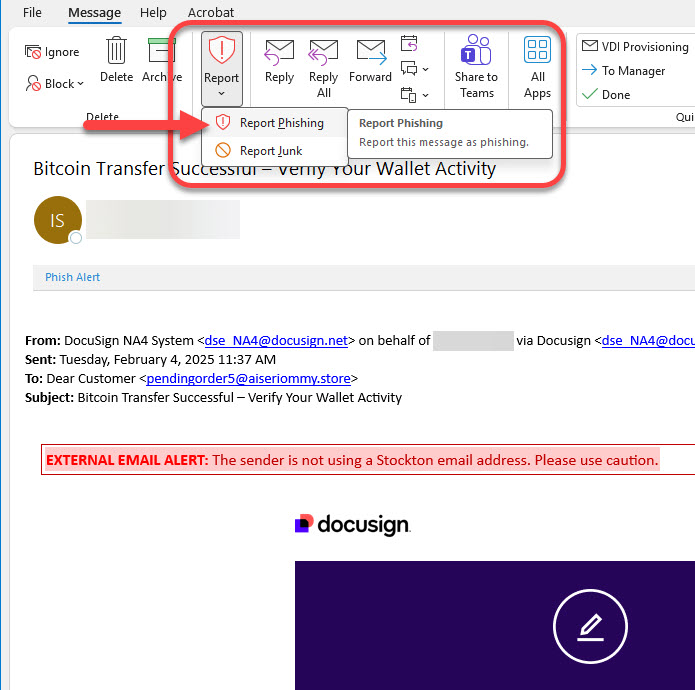
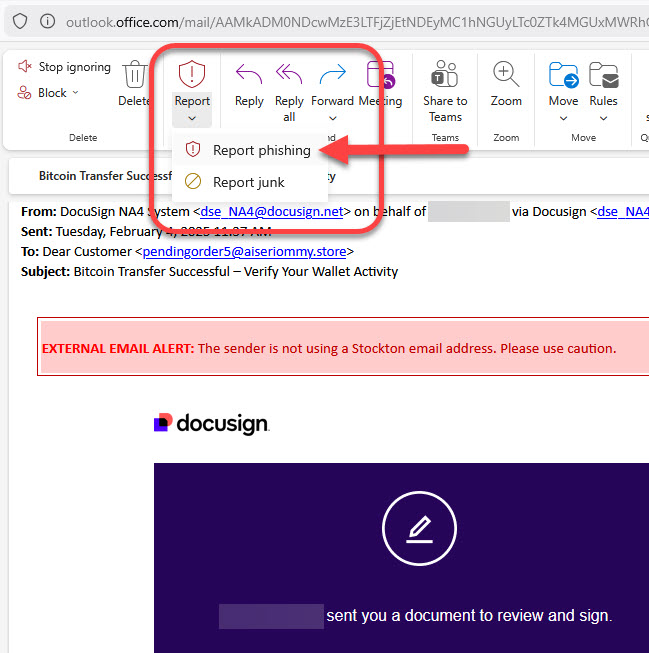
Phishing Prevention

Cybercriminals use deceptive messages, fake websites, and impersonation techniques to steal information, install malware, or trick people into sending money.
Understanding how these attacks work and how to recognize them can help you stay safe online.
What Is Phishing?
Phishing is a type of scam where attackers pretend to be a trusted person or organization to persuade you to provide sensitive information or take harmful actions. Phishing messages often claim there's a problem with your account, pressure you to act quickly, or encourage you to click a link or download an attachment.
These messages come in many forms:
- Email (phishing)
- Text message (smishing)
- Phone calls (vishing)
- Malicious QR codes (quishing)
What Is Spoofing?
Spoofing is when someone disguises themselves by altering an email address, display name, phone number, or website URL—sometimes changing only a single character—to make the communication look legitimate.
A spoofed message may appear to come from:
- A coworker or supervisor
- A business you trust
- A family member
- A financial institution
The goal is the same: convince you that the message is real so you'll follow instructions, send money, or share confidential information.
Common Signs of Phishing or Spoofing
Take a moment to pause and evaluate any suspicious communication. Ask yourself:
1. Was I expecting this?
- If the request is unexpected or unusual, verify it independently using trusted contact information.
2. Does the message seem out of character?
- If a routine task is being handled differently or someone is asking for a rushed favor, be careful.
3. Is there a sense of urgency or pressure?
- Messages that try to make you act quickly are often a red flag.
4. Are they asking for sensitive information?
- Legitimate companies will not ask you for passwords, Social Security numbers, banking PINs, or verification codes over email or text.
5. Do the links or attachments look suspicious?
- Hover over links (desktop) to preview the destination before clicking.
- Be cautious with unexpected attachments.
6. Does the sender's email or phone number look slightly "off"?
- Scammers often use lookalike domains with subtle misspellings.
What to do if You Interact With a Phishing Attempt